User guide / footwear
Shoe Try-On Manual
Follow this guide to upload a ready shoe model or create one from photos, then prepare the final WEARFITS shoe try-on for mobile preview and sharing.
Start here
What is a 3D file?
A 3D file is the digital version of your shoe, including its shape, scale, and surface details.
Why use AR try-on?
AR helps shoppers understand volume, silhouette, and styling before they buy, directly on mobile.
Recommended limits
For smooth performance, keep models around 15K polygons, use up to 2K textures, and aim for up to 15 MB.
Option 1. Upload your 3D shoe model
Use this path when you already have a ready 3D shoe file and want to move straight into the shoe editor.
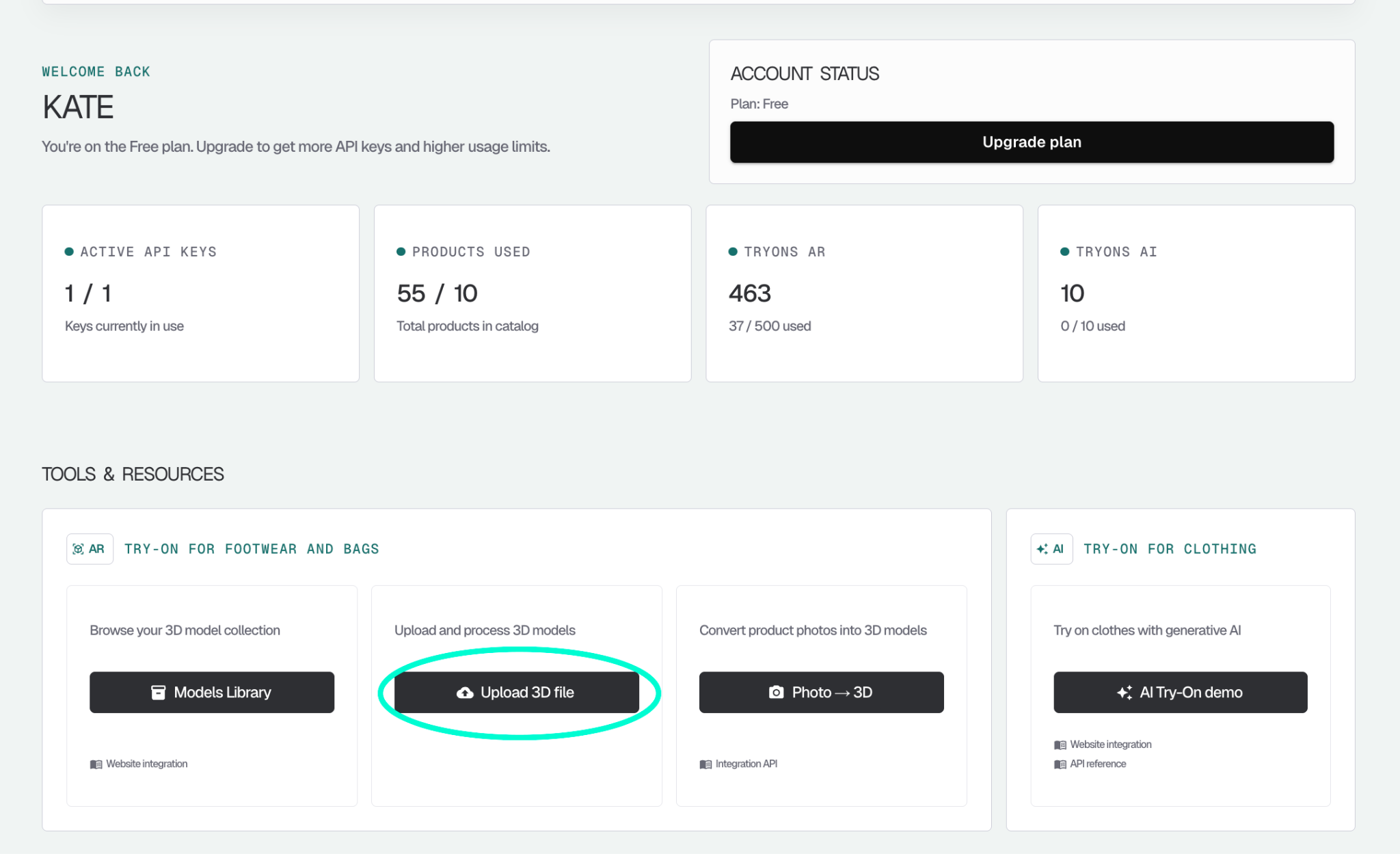
Open the upload tool
From the dashboard, click “Upload 3D file”.
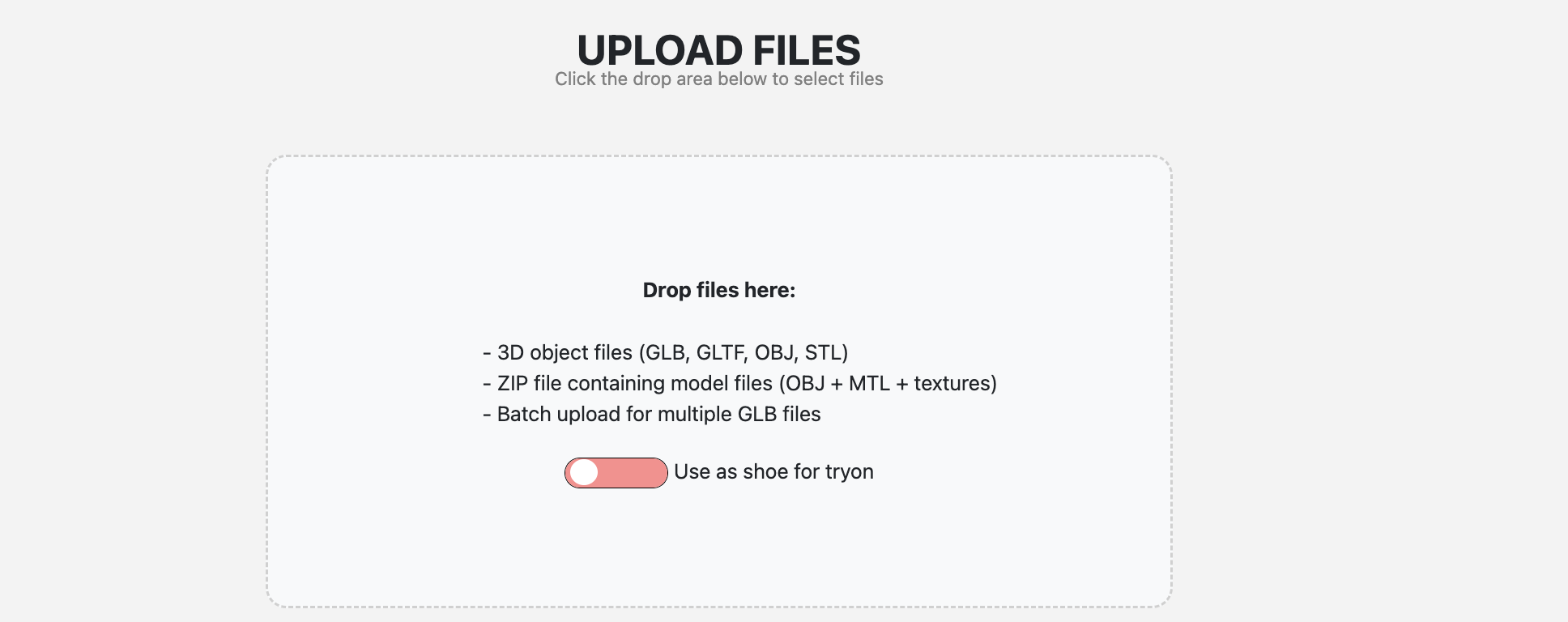
Add your file
Drag and drop the file or select it manually. Keep “Use as shoe for tryon” enabled so the file is prepared for the correct flow.
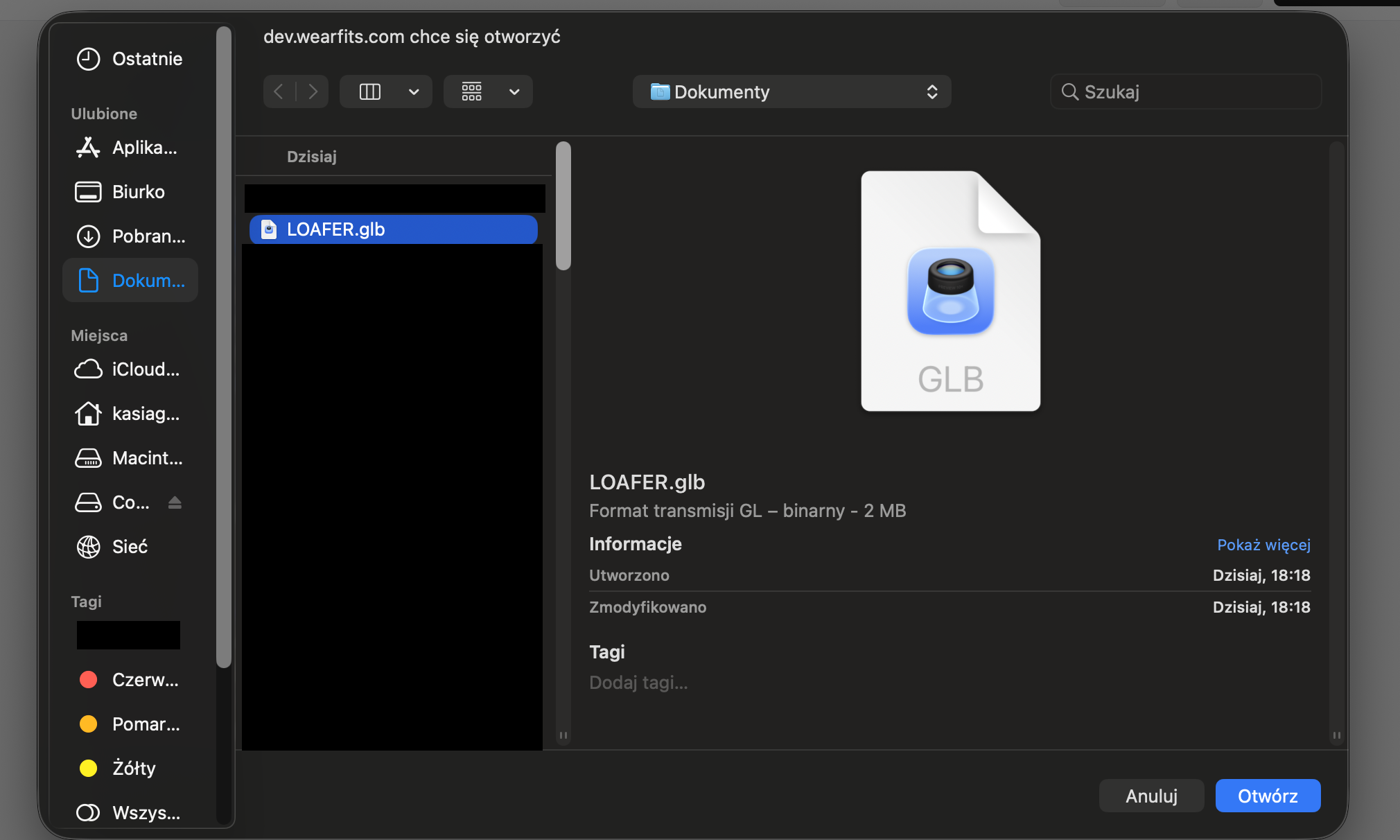
Select the file and confirm
Choose the 3D shoe file from your computer and click “Open”.
Open the shoe editor
When the upload is complete, open “Tryon shoe editor” from the model row to continue the setup.

Option 2. Create a shoe model from photos
Use this path when you do not have a 3D model yet. The photo-to-3D flow can create a try-on-ready output from product images.
Review the photo guidelines
Before uploading, open “How to prepare photo”. Use clean, sharp images with a plain background and keep only one product in frame.
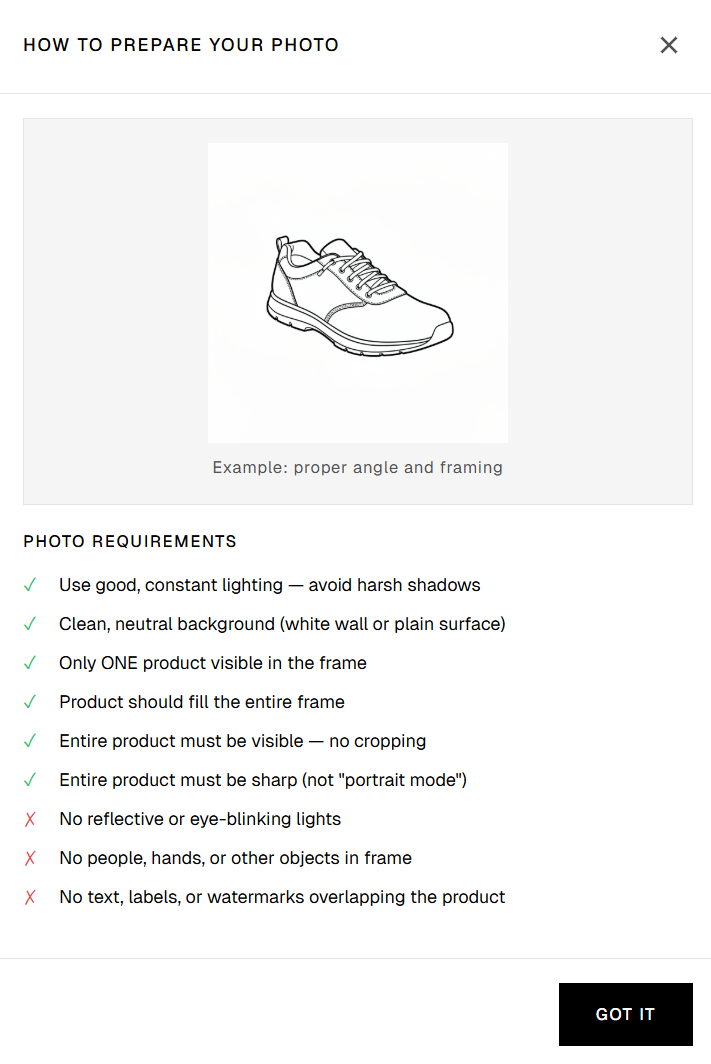
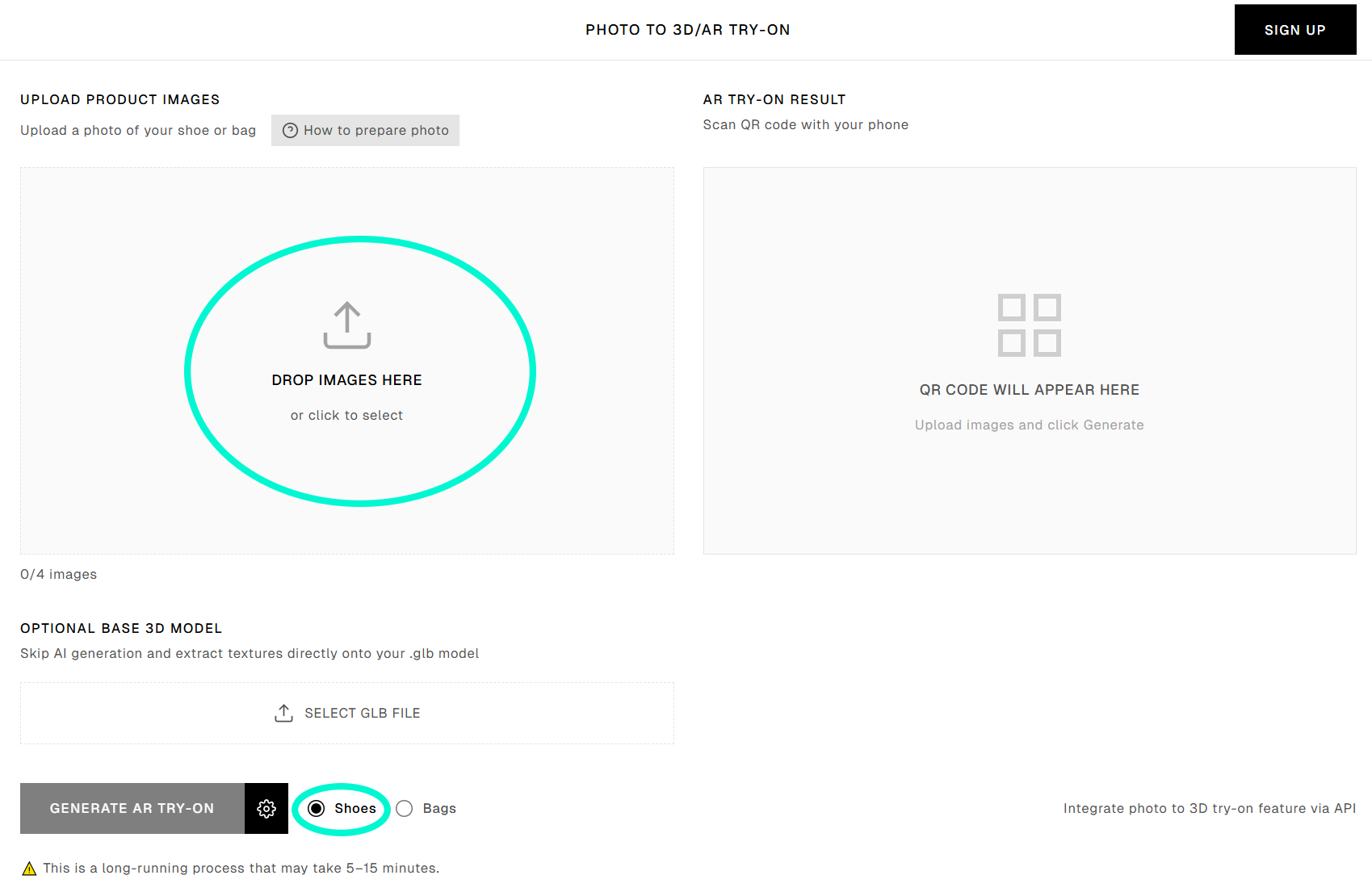
Upload four photos and choose Shoes
Add four photos from different angles, select “Shoes”, and then click “Generate AR try-on”.
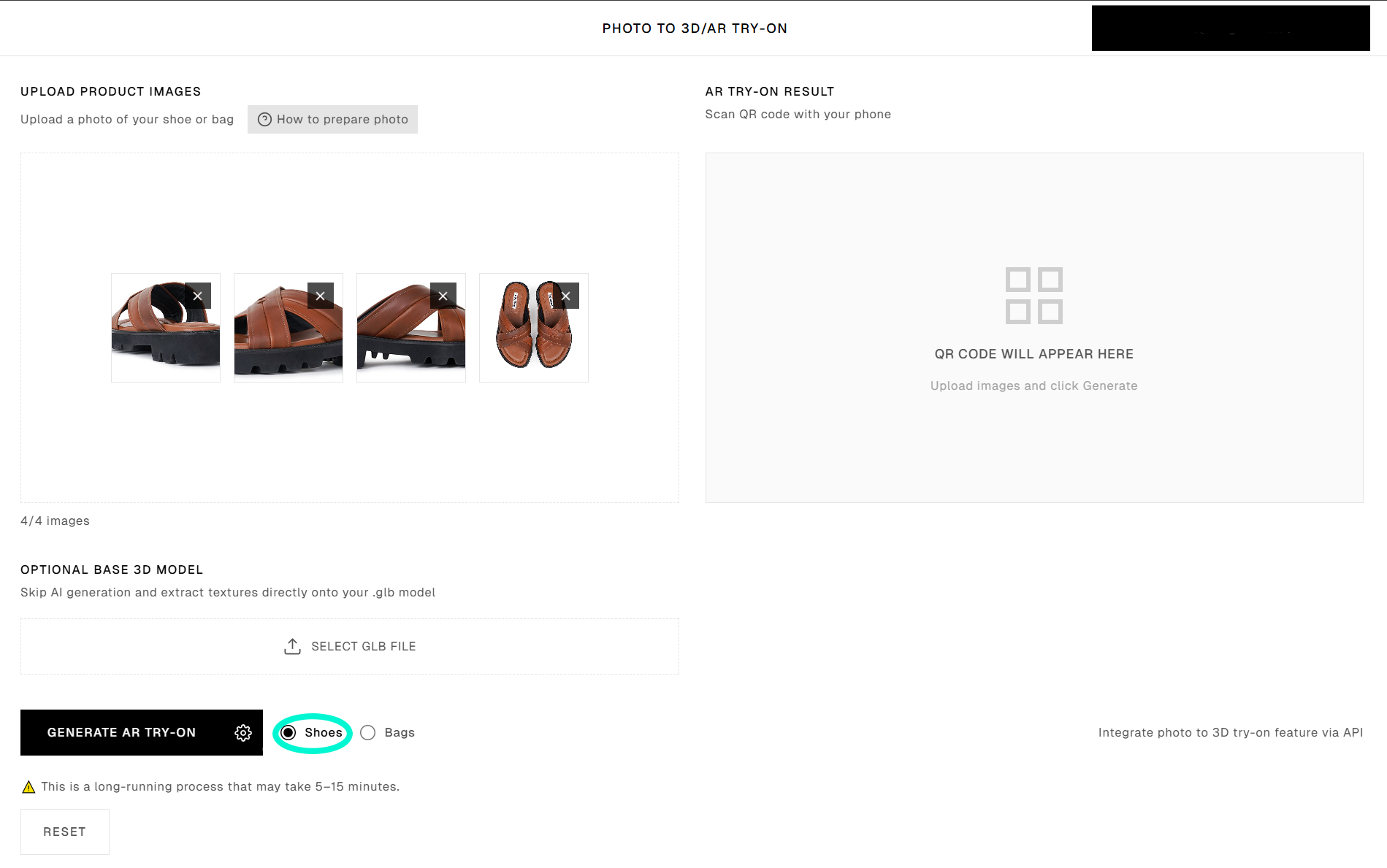
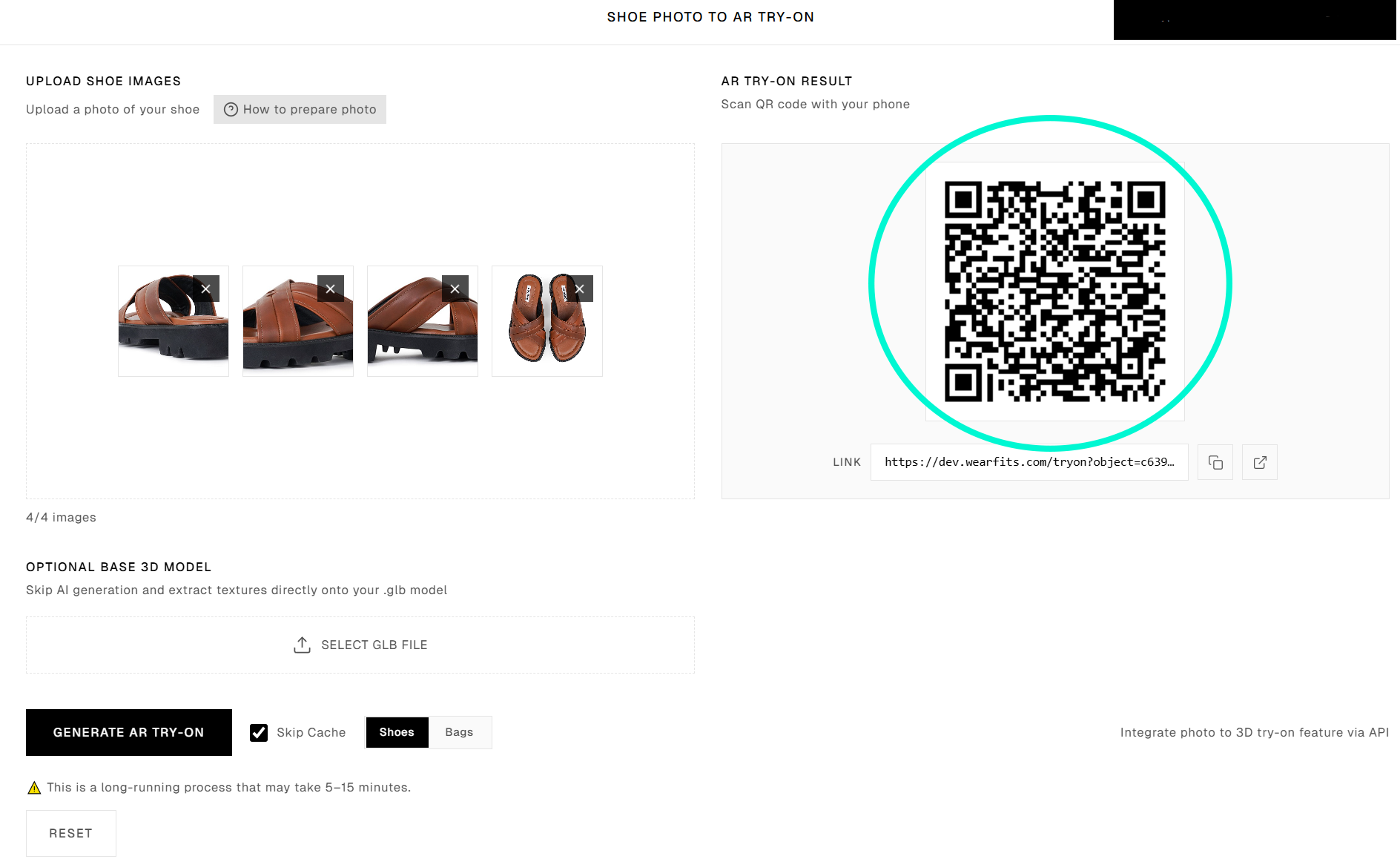
Wait for the preview link and QR
When processing is complete, the platform will generate a QR code and a mobile link for preview.
Prepare and share the final shoe try-on
Once the model is ready, use the shoe editor to validate the fit and save the public mobile experience.
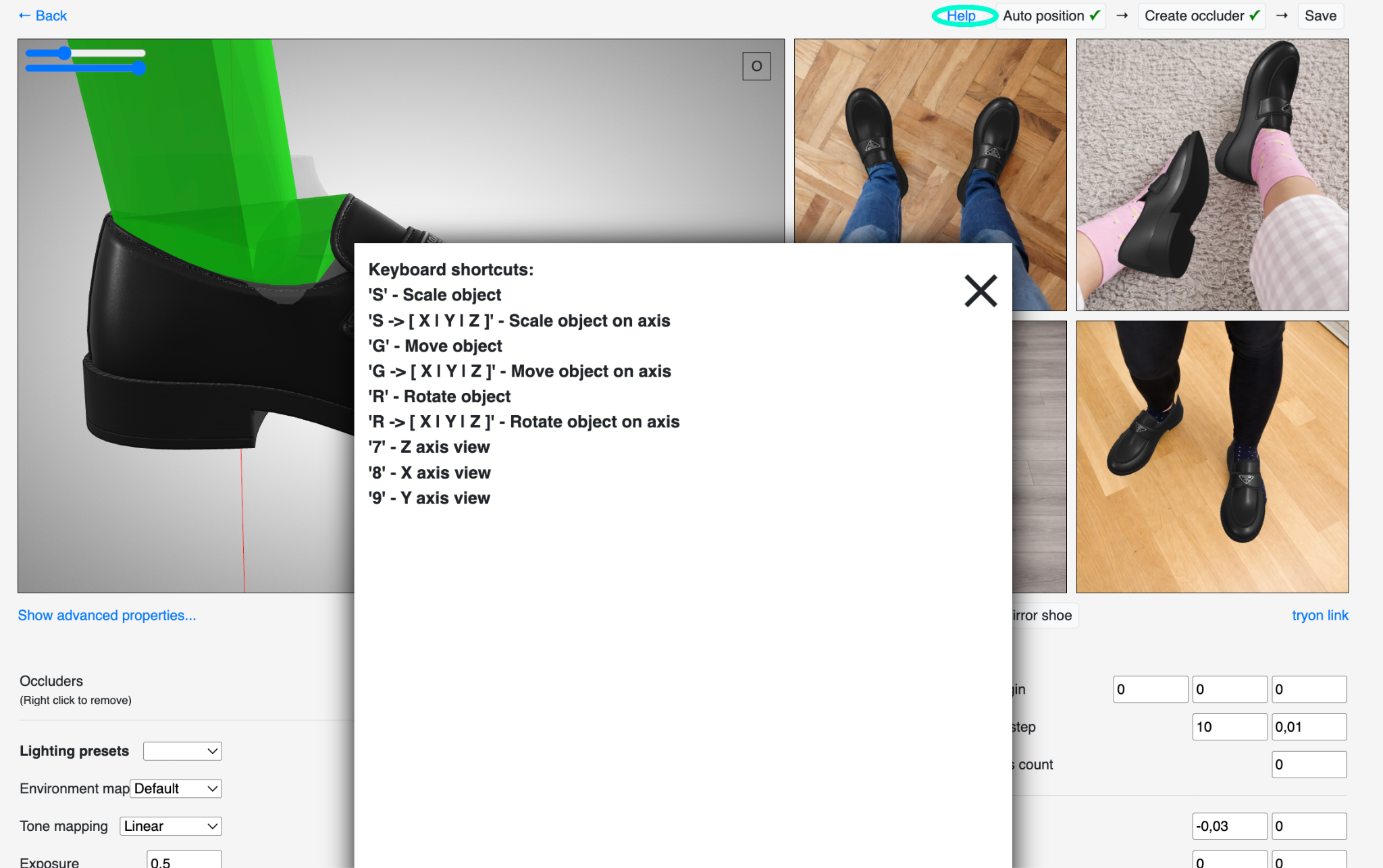
Check the shoe position in the editor
Open the shoe editor and review the fit on the foot. If needed, click “Help” to see the keyboard shortcuts.
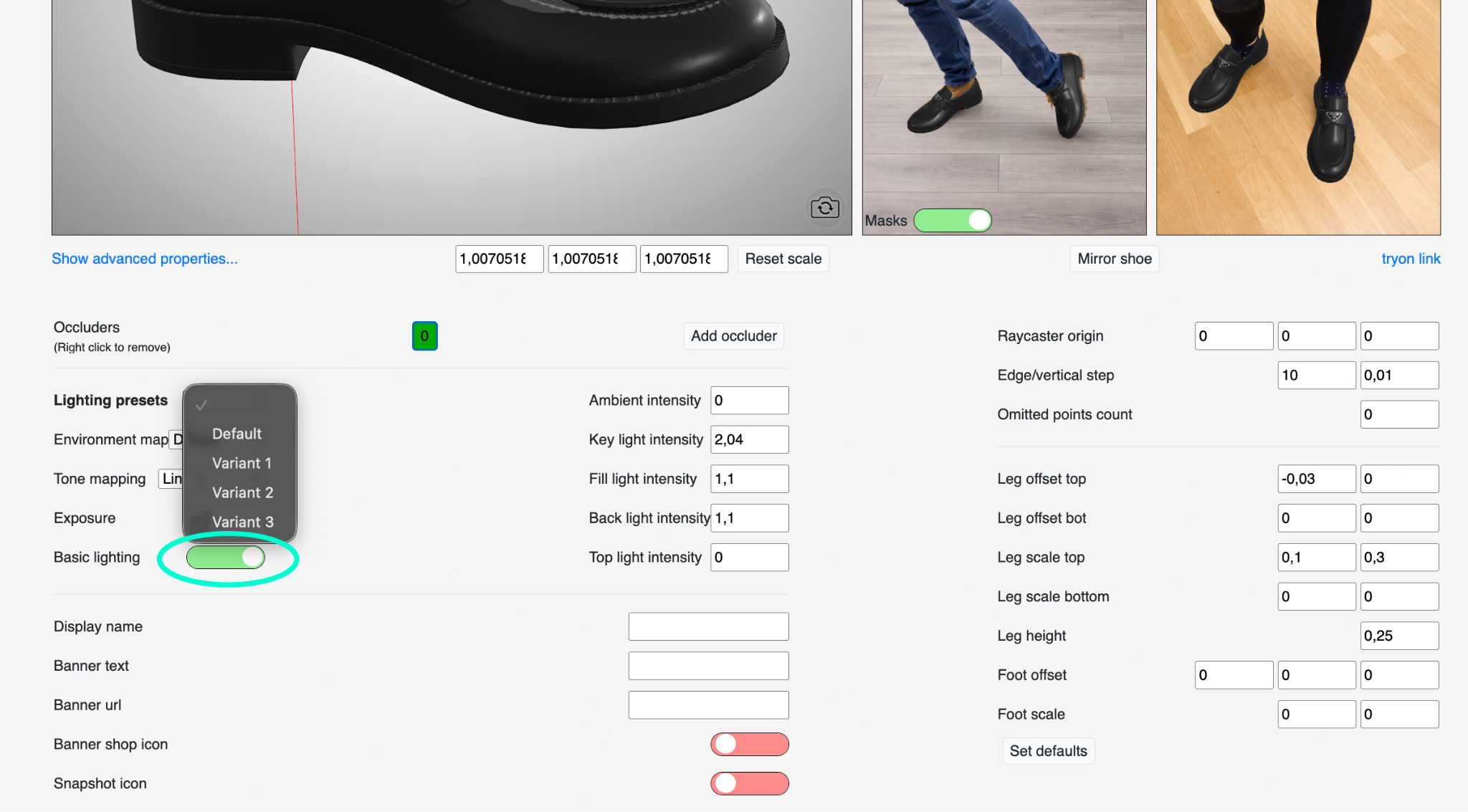
Fine-tune the setup if needed
Adjust only if the shoe needs a small correction, for example in lighting, scale, or masking.
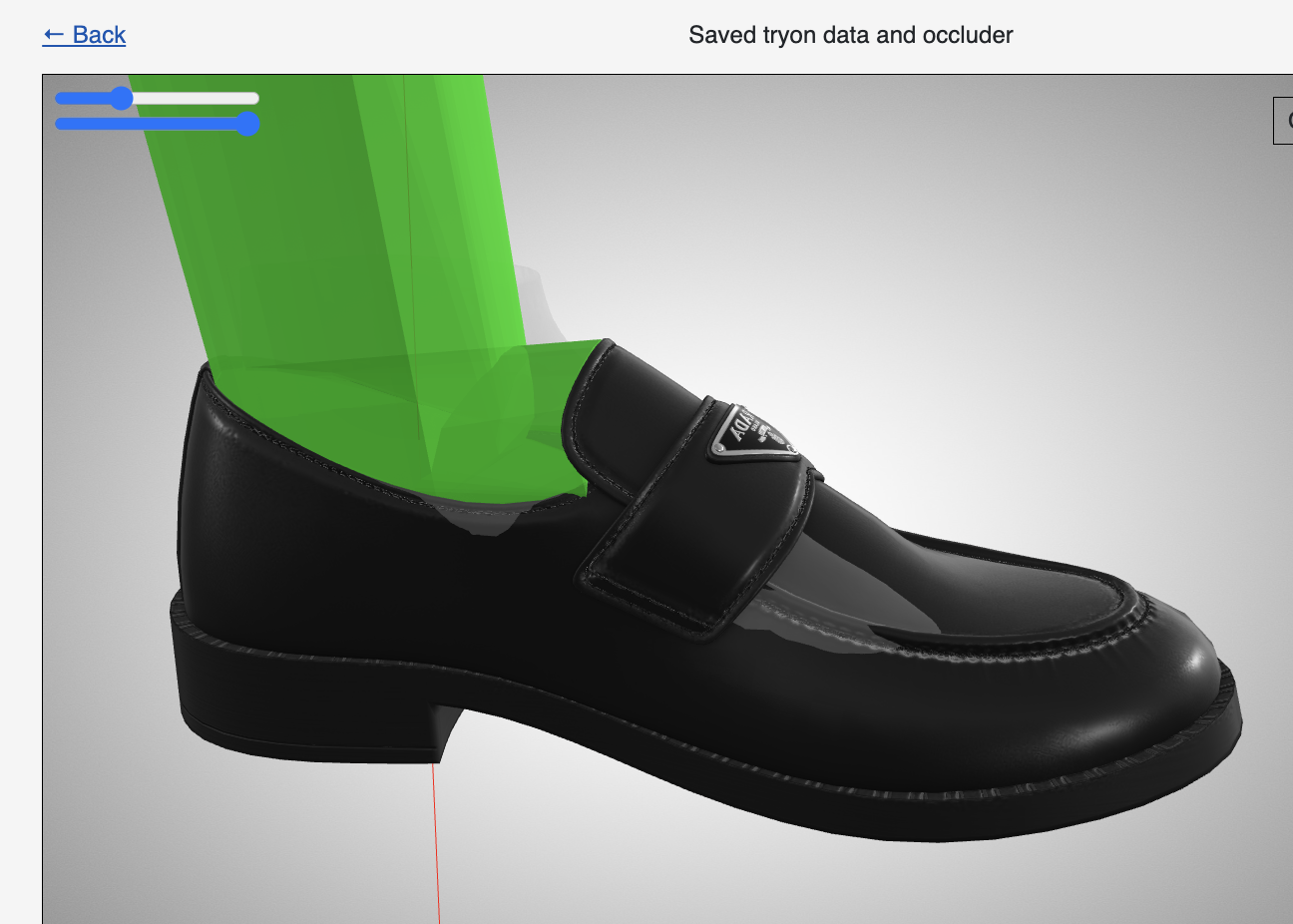
Save the final try-on data
Click “Save” when the shoe looks correct in the try-on.
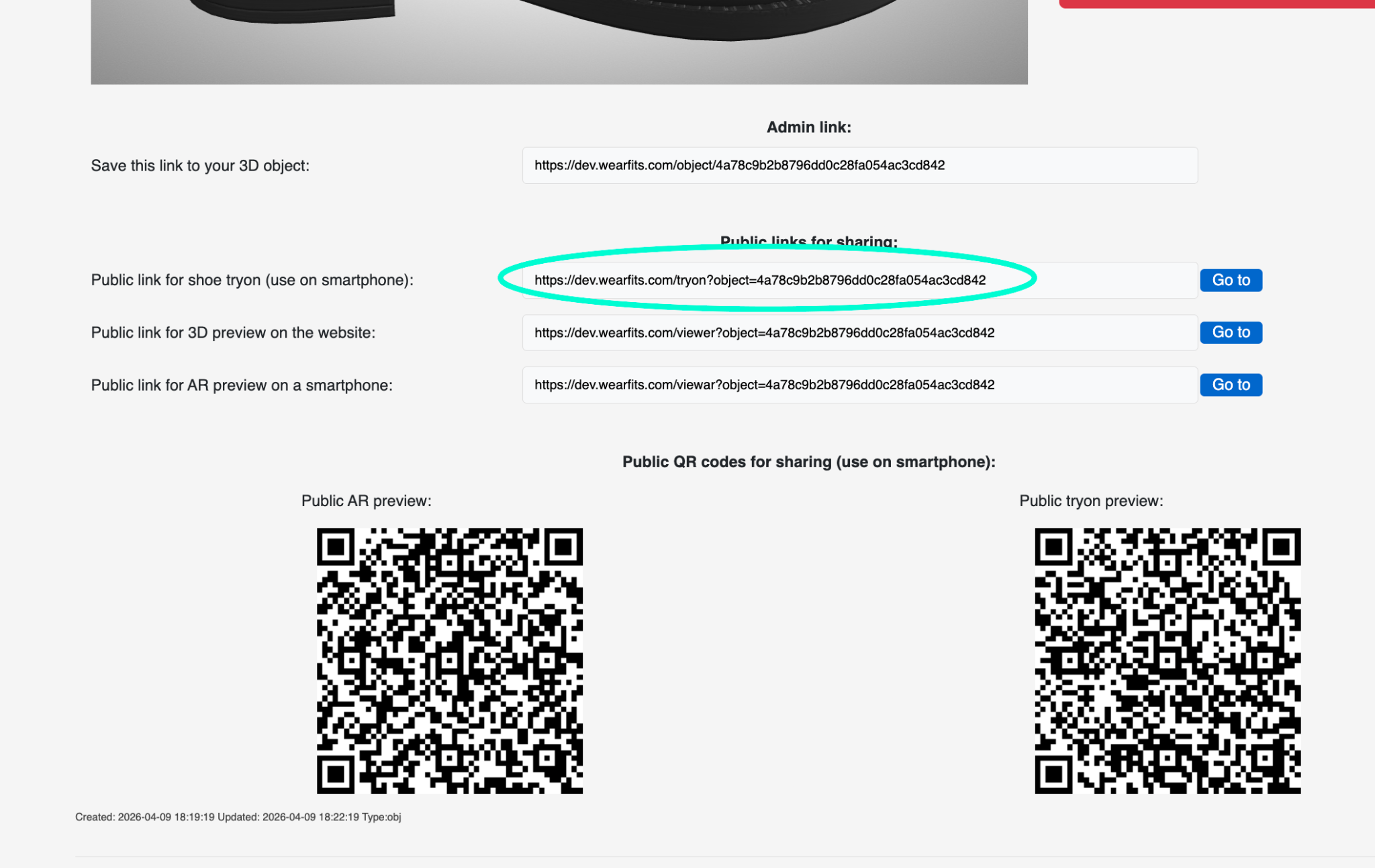
Copy the public try-on link
Use the public shoe try-on link or QR code to preview and share the final mobile experience.